
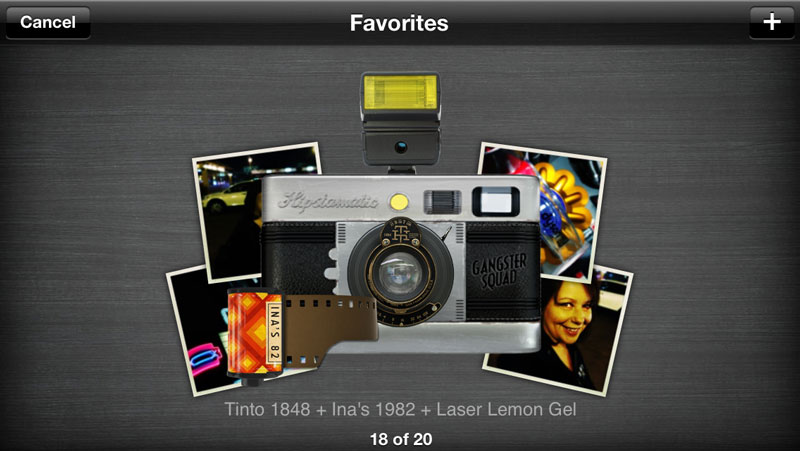
It’s no secret that Hipstamatic app has many thousands of happy users the world over. Many of them however, are a little mystified by some of its features.
The ‘Favourites’ feature is perhaps, the most useful and yet the most under-used of all. Here’s how to get the most out of it. >>>
The idea is that you can save your fave combos to enable quick and easy access. Unfortunately, what often happens is that you end up with so many favourites that it takes just as long to find what you’re looking for. This is often due to not knowing how to delete them.
Here are a few tips on how to use the feature to your best advantage:
To add a Favourite: Tap the star icon under the viewfinder. The current combo setting will appear. To add this combo as a favourite, tap the camera icon and select Save (top right). The camera icon will then go from B&W to colour and a selection of your album pics will be displayed.
To add a different combo: Tap the star icon, select the + icon (top right) then select your preferred lens, film, flash etc. then save
Once you have more than one favourite saved, you can swipe through them and tap to select.
To remove a Favourite: Press and hold the selected combo. Then tap ‘remove favourite’.
At this stage you will also have an option to re-name your combo. This is a useful feature once you know which combo’s suit which situations, naming them according to their best application.
The key to getting the most from this feature is organization. Try alternating a colour combo with a B&W combo so that you don’t have to swipe through too many of one sort to find another. Keep reviewing your chosen combos and delete any that aren’t used often. If you’re off on a photo safari, select a fresh set of combos that are best suited to the subjects and light conditions of the day… six or eight should be plenty at any one time.
Another way of selecting a previously used combo is to select an image in your Hipsta album and tap the cog icon (top left) then choose the camera/star icon (bottom center). This will give you two options: New Favourite or Match Setting. Match setting will instantly change your combo to the one used in your chosen image.
Happy snapping!
~~~~

